Candidate Shortlisting Guide
Note: Clicking on the screenshots once will enlarge them for a clearer view.
Step 1: Log in to Nucleus- Talent Management
(Use the Proxy feature if you are a delegate)
Step 2: Navigate to Recruiting from the Home drop-down menu
Step 3: Click on the candidates number link

(Ensure 'Filter Job Requisitions' is set to 'Open Job Requisitions' or 'Open and Pending Job' to view all of your open requisitions.)
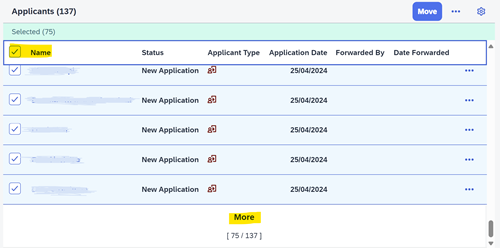
Step 4: Click on the tick box next to 'Name' to select multiple candidates. To include all candidates, scroll down and click 'More' until everyone is selected
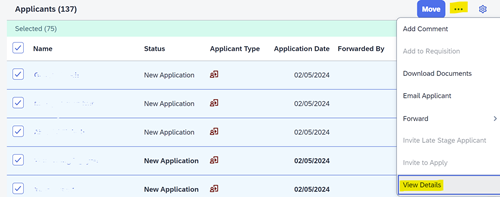
Step 5: Click on the ellipses (…) Icon and select ‘View Details’
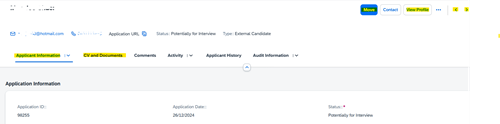
This will open each candidate's application information, CV and all other details in a viewing window. Click on the View Profile link if you need to view their academic transcript/qualifications. You can Move candidates to any status in the talent pipeline as you review. Scroll through each candidate's details using the arrows, as highlighted below.
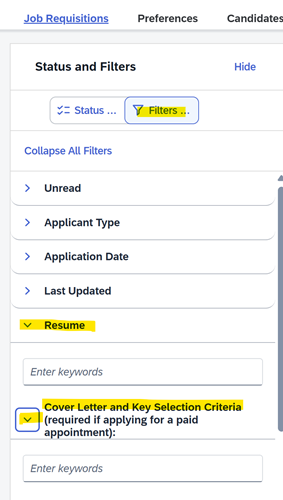
Candidates can also be filtered using keyword searches within their resumes or other documents by selecting Filters on the left-hand side:
Note: When candidates apply, they will appear under New Application status. As you review candidates, those who are eligible can be moved to Review for further consideration. Candidates may also be moved straight to any other status such as Interview if further review is not required.
Moving candidates to statuses such as New Application, Unsuccessful Candidate- Not Interviewed and Automatic Disqualified will trigger automated email notifications to the candidates.
Step 6: Once you have identified the successful candidate, move them to the Successful Candidate status. This will trigger an automated email notification to the recruitment team to start the pre-employment process. You will receive an email notification to confirm their exact salary and start date, which you have verbally discussed with your chosen candidate.
Note: The recruitment team is available to assist if you need guidance before making the verbal offer.
Step 7: Once recruitment team initiates the onboarding process for the successful candidate, you will receive an email notification to move remaining candidates to Unsuccessful statuses.
Move all interviewed candidates to the Unsuccessful Candidate- Interviewed status and provide them with verbal feedback. They will not automatically receive an email notification.
Move the remaining unsuccessful candidates to the Unsuccessful Candidate- Not Interviewed status so they are automatically notified of the outcome.